General Settings
The General Settings tab manages global variables including company metadata, localization formats, default appointment statuses, currency scopes, and front-end step overrides.
Step 1 — Access General Settings
To access global configurations, log into your WordPress admin panel and navigate to:
BookWellNow → Settings → General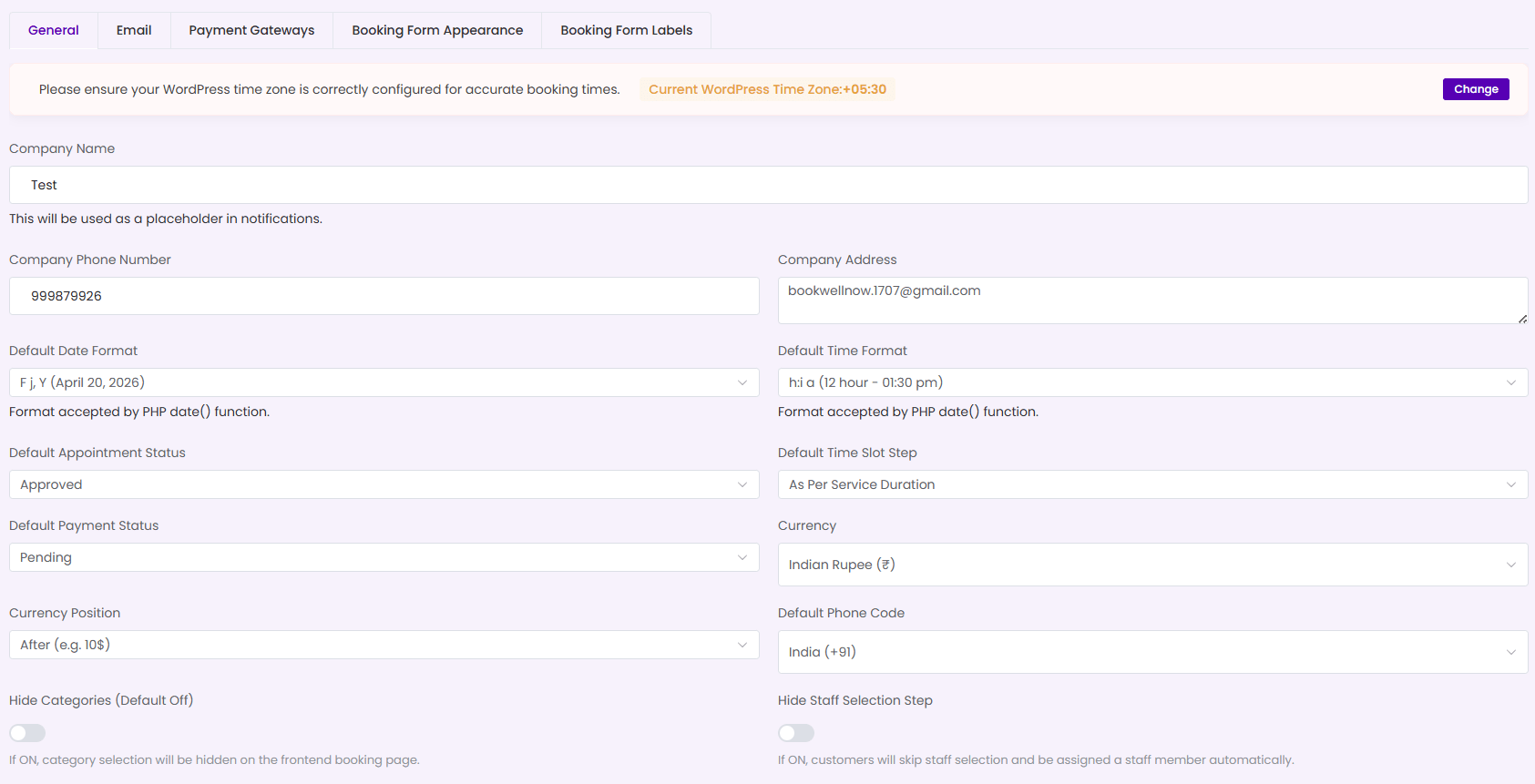
Step 2 — Verify Timezone Notice
The timezone banner displays your active WordPress configuration. Accurate bookings rely on correct time calculation:
- Inspect the amber **Current WordPress Time Zone** display badge.
- If offset gaps exist, click the purple Change button to redirect to global WordPress settings and synchronize your regional zone.
Step 3 — Populate Company Metadata
Provide company details that will be automatically inserted into client transactional notifications:
- Company Name: Input your business name (e.g. “My Studio”). Acts as the
%company_name%variable. - Company Phone Number: Set the primary support helpline.
- Company Address: Input the physical location or office bounds.
Step 4 — Configure Formatting & Default Rules
Align date, time, and scheduling rules to match your regional preferences:
| Setting Field | Configuration Scope | Administrative Value |
|---|---|---|
| Default Date Format | PHP-accepted date selector | Standardizes how dates are shown (e.g. “April 20, 2026”). |
| Default Time Format | PHP-accepted time selector | Sets 12-hour (AM/PM) or 24-hour schedules. |
| Default Appointment Status | Approved / Pending dropdown | Sets the initial status for newly booked appointments. |
| Default Time Slot Step | Dropdown selector | Sets slot intervals (e.g., “As Per Service Duration”). |
| Default Payment Status | Pending / Paid dropdown | Controls payment tracking statuses on checkout. |
| Currency | Standard financial dropdown | Sets the active business currency (e.g., “US Dollar”). |
| Currency Position | Before / After dropdown | Positions currency symbols (e.g. “$10” or “10$”). |
| Default Phone Code | Country flag code list | Sets the default international dialing prefix. |
| Admin Font Family | System typography dropdown | Sets the font family (e.g., “Poppins”) for the admin dashboard. |
Step 5 — Apply Front-end Checkout Overrides
Simplify the scheduling experience for your customers by overriding standard form steps using the switches at the bottom of the form:
- Hide Categories (Default Off): Toggle to **On** to hide the category step in the frontend booking form. Ideal for businesses offering all services under a single category.
- Hide Staff Selection Step: Toggle to **On** to skip the staff selection step. Customers will be assigned an available specialist automatically.
⚠ Timezone Warning: Incorrect WordPress timezone settings will cause booking offsets and schedule conflicts. Always verify your current WordPress Time Zone is synchronized before opening booking slots!